Adobe ConnectNow Add-in is a screen sharing tool for Windows Operating System. This add-in allows users to manually install the screen sharing add-in if the automatic updater in ConnectNow is not working. The steps to get the Adobe Acrobat ConnectNow meeting add-in working on Windows are: 1) Go to the “C:%2FDocuments and Settings%2F [yourname]%2FApplication Data%2FMacromedia%2FFlash Player%2Fwww.macromedia” folder and delete the ‘acaddin%27 folder if it exists; 2) Unzip the attached folder onto your desktop, open it and move that ‘acaddin%27 folder.
ConnectNow Add-in for Screen Sharing on Windows OS. You can manually install the screen sharing add-in if the automatic updater in ConnectNow is not working on your system.
Here are the steps to get the Adobe Acrobat ConnectNow meeting add-in working on Windows:
-1- Go to the following folder and delete the ‘acaddin’ folder if you have one: “C:\Documents and
Settings\ [yourname]\Application Data\Macromedia\Flash Player\www.macromedia.com\bin”.
[yourname] should be replaced by your name on your machine.
-2- Unzip the attached folder onto your desktop, open it and move that ‘acaddin’ folder into your bin
folder (“C:\Documents and Settings\ [your name]\Application Data\Macromedia\Flash
Player\www.macromedia.com\bin\ “).
Your acaddin.exe (along with 3 other files) should now be in the following folder: “C:\Documents and
Settings\ [your name]\Application Data\Macromedia\Flash Player\www.macromedia.com\bin\acaddin\”
-3- Restart your browser, clear your cache & launch your meeting.
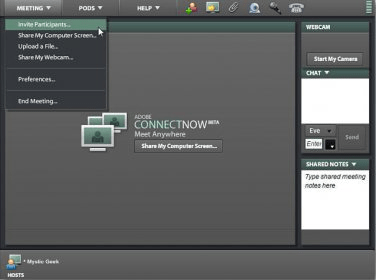
The meeting should launch in the add-in. If it doesn’t, then click on the Share My Computer screen
button and it should launch the meeting add-in.




Comments